

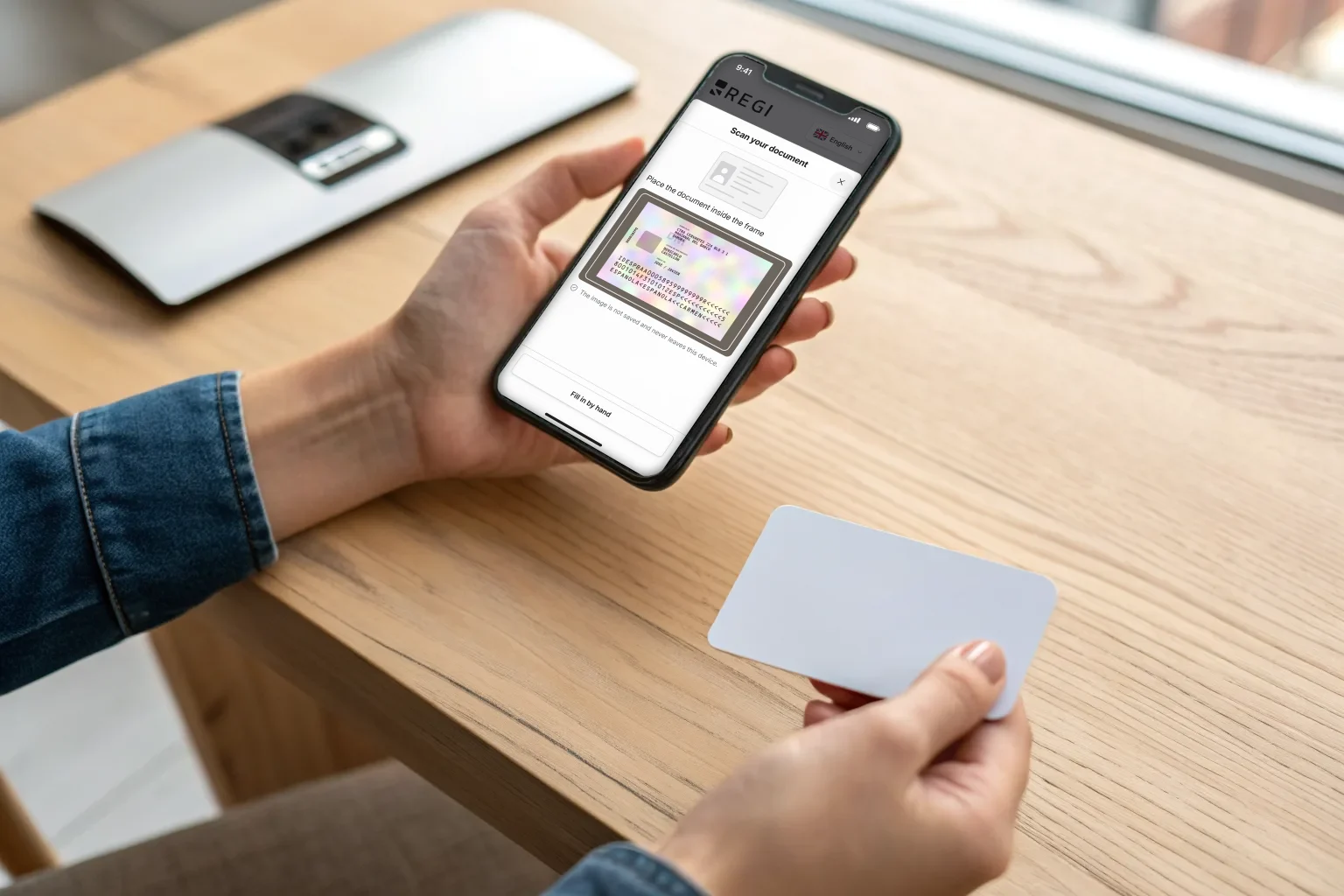
The slowest part of check-in is copying the ID. Document number, support number, first name, two surnames, date of birth, nationality, sex and, for a Spanish card, the home address. All of it is printed on the ID card or passport the guest is holding, and until now they typed it into their phone by hand, one character at a time.
Now they can point the camera at it. Regi reads those details, fills in the form and shows the guest what it read so they can check it before moving on.
What your guest sees
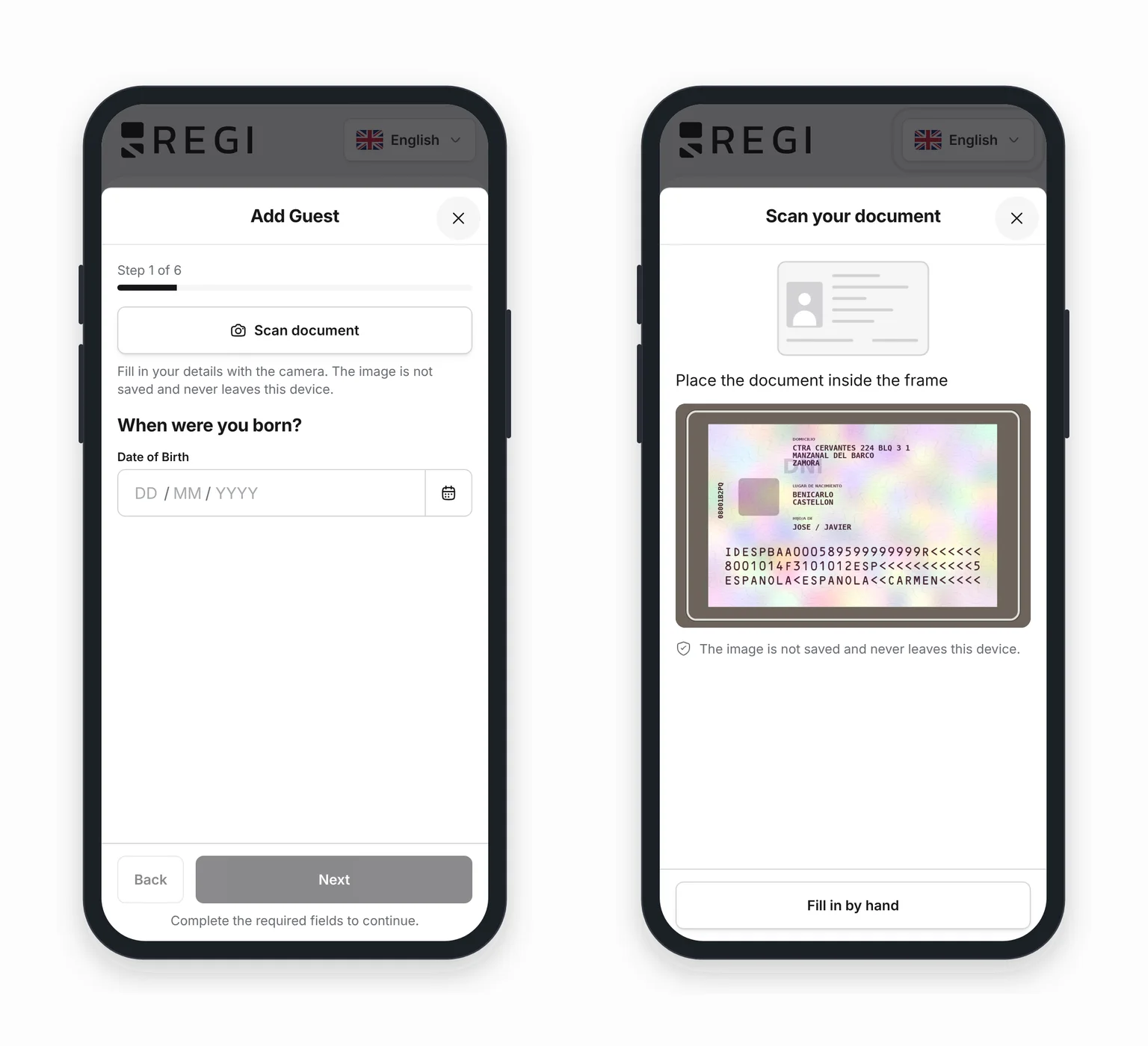
They open the check-in link, start adding a traveller, and the first step has a new button: Scan document. A line under it says the image is not saved and never leaves the device.
When they tap it, the browser asks for camera permission and the sheet is retitled Scan your document. A short animation shows where to look: on the back of an ID card, on the photo page of a passport. What Regi reads are the two or three lines of letters, numbers and < signs printed at the very bottom of those documents, the ones airport machines read. On the back of a DNI or TIE it also reads the home address, printed just above them.
When the read is good, a seal shows for a moment and the review screen opens.
One screen to check instead of several steps
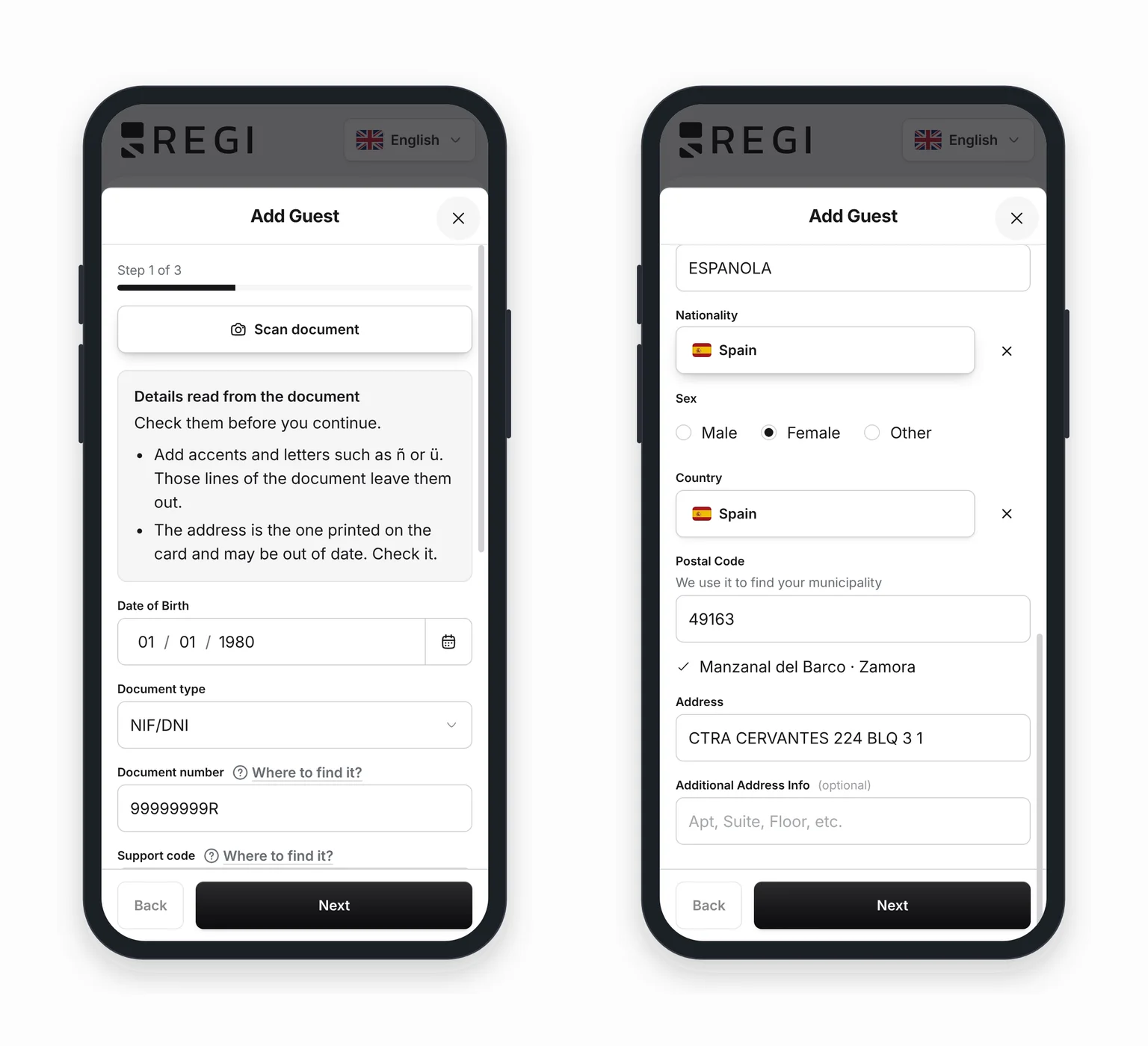
Without the scanner, the guest goes through one step for the date of birth, one for the document, one for personal details and one for their address. After a scan, the steps the document filled in become a single screen with everything in place: Details read from the document. Check them before you continue.
Every field is editable and already validated. If something is off, the error shows as soon as the screen opens, not when the guest taps Next. A nationality that matches no country, for example, is flagged from the start and fixed in place.
With a DNI or TIE, the address joins that same screen: Spain as the country, the municipality, the street and, when the municipality has a single postal code, the postal code as well. A printed address may not be the current one, since many people move without renewing their card, so the screen asks the guest to check it.
The screen also flags two cases where the document does not give the whole picture:
- How the surnames split. When the surnames add up to more than two words, as in «de la Fuente», the document does not say where the first one ends. Regi makes the most likely split and asks the guest to check it.
- Long names. Those lines have a fixed number of characters. If the name fills the space completely it may be cut short, and the screen asks the guest to complete it.
Then come the steps no document can fill: contact details and signature. Those are typed as always.
If the guest scanned the wrong document, say their travel companion’s, the scan button is still on that screen. A new scan replaces every detail from the previous one, including those the second document does not carry, so two people never end up mixed into one traveller.
On their phone before arrival, or at your reception
Usually the guest does it on their own phone, from the link you send before arrival. By the time they get there, check-in is done.
If you do it yourself with the guest in front of you, at a desk or at the door, the scanner works the same from the link on your phone, tablet or computer, as long as it has a camera. You ask for the document, point the camera at it and check the screen together.
The image stays on their phone
The text recognition runs inside the guest’s browser. Regi only receives the form fields, exactly as if the guest had typed them. The photo of the document is not sent, not saved and not kept anywhere. The moment the scan ends, the image is gone.
Nothing beyond what the form needs leaves the phone either. Those lines include the document’s expiry date, for example, and that date is neither used nor sent.
This matters to you more than to anyone. You are the one handling your guests’ data, and if a tool uploads a photo of their ID to a server or keeps a copy, you are the one answerable for that copy under data protection law. This is not hypothetical: the Spanish Data Protection Agency fined a hotel in Girona €9,000 for scanning a guest’s DNI at check-in, reduced to €5,400 for admitting the facts and paying promptly (Hosteltur). With Regi there is no copy. The scanner complies with data protection law, and the image never leaves the device.
What we do with the rest of your guests’ data is in how we handle your guests’ data.
It would rather not read than read wrong
A misread document number is worse than an empty one. If the guest does not notice, the mistake reaches the traveller report filed with SES.Hospedajes. So the scanner is strict before it accepts anything:
- Those lines carry check digits, numbers calculated from the rest. All of them must match.
- On a Spanish DNI or NIE, the letter must match the number.
- The characters must be large and sharp enough.
- Three different camera frames must give exactly the same reading.
The address works the same way: each part has to read identically on two frames, and a part that does not is left empty for the guest to type, rather than filled with a guess.
Until all of that holds, it keeps reading. For the guest, that means a few more seconds holding the document still, never a made-up detail.
When it cannot read, it says why
The worst thing a scanner can do is sit there with the camera open, doing nothing and explaining nothing. This one looks at what it sees and tells the guest what to change, on a status line that does not flicker from one message to another with every frame:
- Nothing in view: Place the document inside the frame.
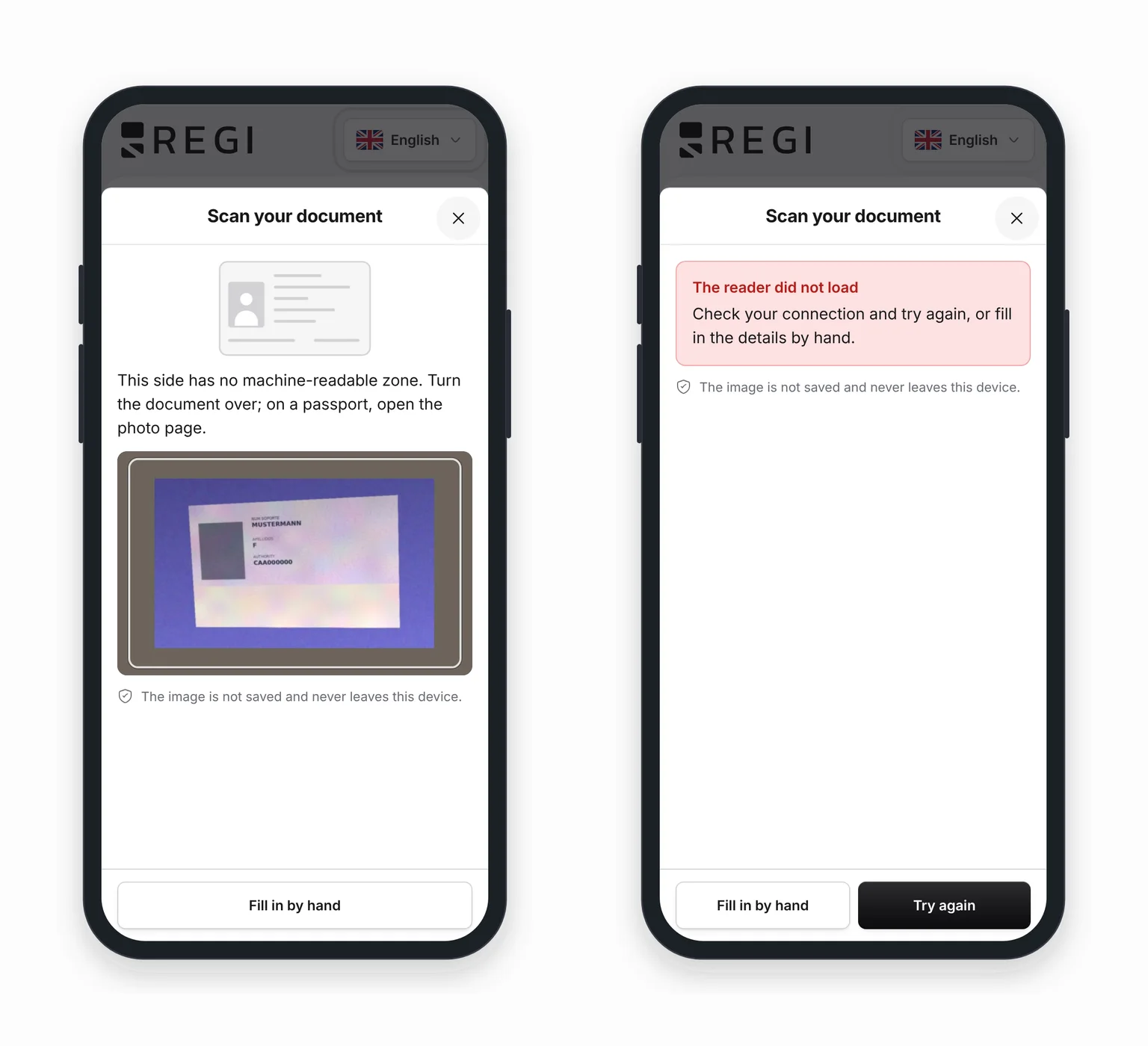
- Text, but not those lines, because it is the front of an ID card or a passport cover: This side has no machine-readable zone. Turn the document over; on a passport, open the photo page.
- The document is at a steep angle: Straighten the document.
- A line runs off the edge: Fit the whole document inside the frame.
- Too far away: Move the document closer to the camera.
- Glare or blur: Avoid glare and shadows, and hold the document still.
- Already reading: Reading. Hold the document still.
And when something fails outright, the screen says what happened: the guest did not allow the camera, the device has no camera that can be used, or the reader did not load because of the connection. Each time, Try again and Fill in by hand sit side by side. Nobody gets stuck in the camera.
What it does not do
- It does not read a document without those bottom lines. If the document has none, the guest fills in the details by hand.
- It does not read the address from a passport, which does not print one, or from a foreign ID card. There the guest types their address as always.
- It does not fill in phone, email or signature. An ID document does not carry them.
- It does not notice a document held upside down. It takes it for a side with no reading zone and asks the guest to turn it over, which is confusing for a moment.
- It does not show in every browser. If the guest’s browser cannot do the reading on the device, the button does not appear and the form works as it always has.
- It does not appear when editing a saved traveller. The button is there when adding a new one. A traveller who already exists is corrected by hand.
- The first time takes a little longer. The phone downloads the reader, about 10 MB, and keeps it for next time. On a good connection it starts downloading while the guest is on the form. On a very slow connection or in data-saver mode, it waits until they tap the button.
The rest of the flow is unchanged. For the whole check-in, from the moment the guest opens the link to the signature, see faster online check-in for your guests, and for the latest fixes, fewer places to get stuck.